
How does reporting a problem work?
-
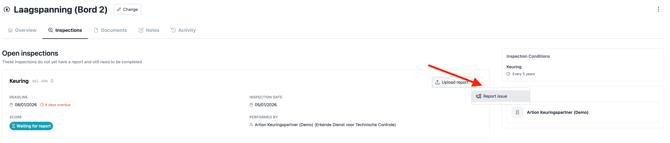
Open the requested inspection.
-
Select “Report problem”.
-
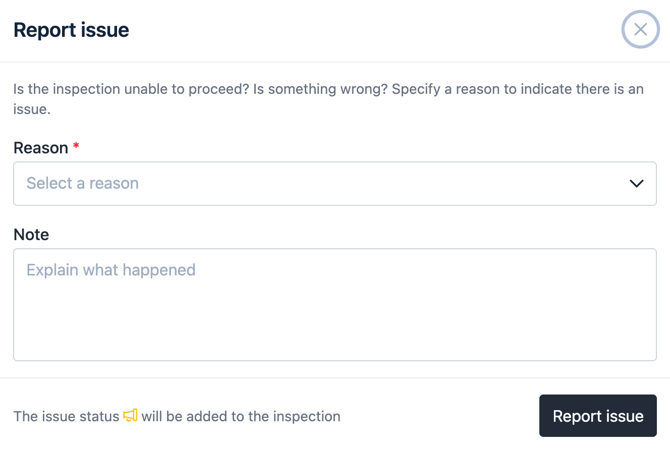
In the dialog that appears:
-
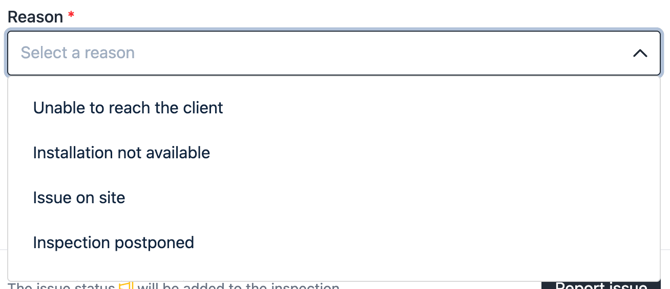
select a reason from the list, such as:
-
Installation not available
-
On-site issue
-
Inspection postponed
-
Insufficient information
-
-
optionally add a note to provide additional context.
-
-
Confirm the problem.
What happens after reporting a problem?
After reporting the problem:
-
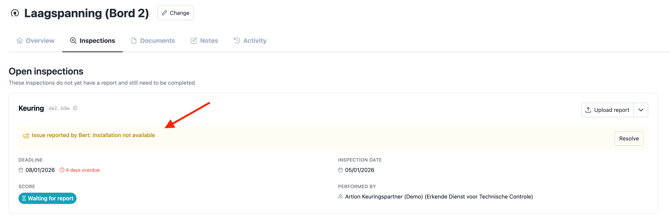
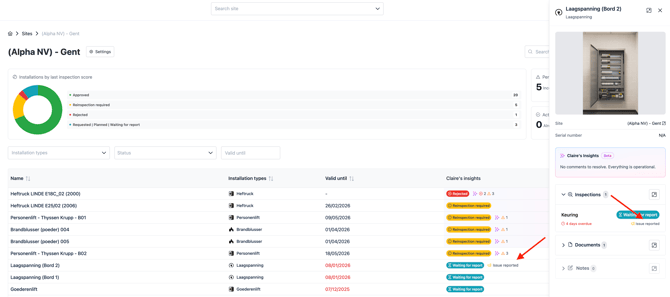
the issue is shown in the inspection details of the installation,
-
who reported the problem,
-
the selected reason,
-
and the optional note,
you can see
-
-
the status is also displayed in the asset dashboard, in Claire’s insights column and in the asset details panel.
Problem resolved? Here’s how to update it
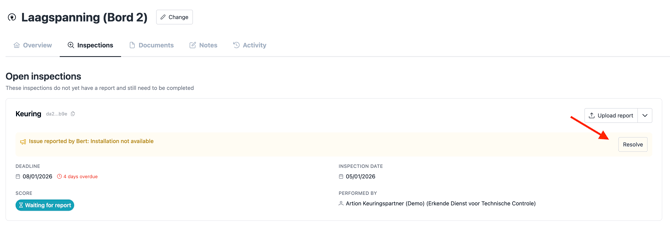
Once the situation has been resolved (for example, the installation is available again or the required information has been provided), the inspector can:
-
resolve the issue using the “Resolve” button.
Why is this important?
This feature makes a clear distinction between:
-
inspections that are overdue due to real, recorded issues,
-
and inspections that are overdue due to delay or negligence.
This results in:
-
greater transparency,
-
more accurate dashboards and insights,
-
a fairer view of follow-up and compliance.
Summary
Inspectors can now report problems on requested inspections, including a reason and an optional note. This information is visible in the inspection details and in Claire’s insights. Once resolved, the problem can be properly closed in the platform